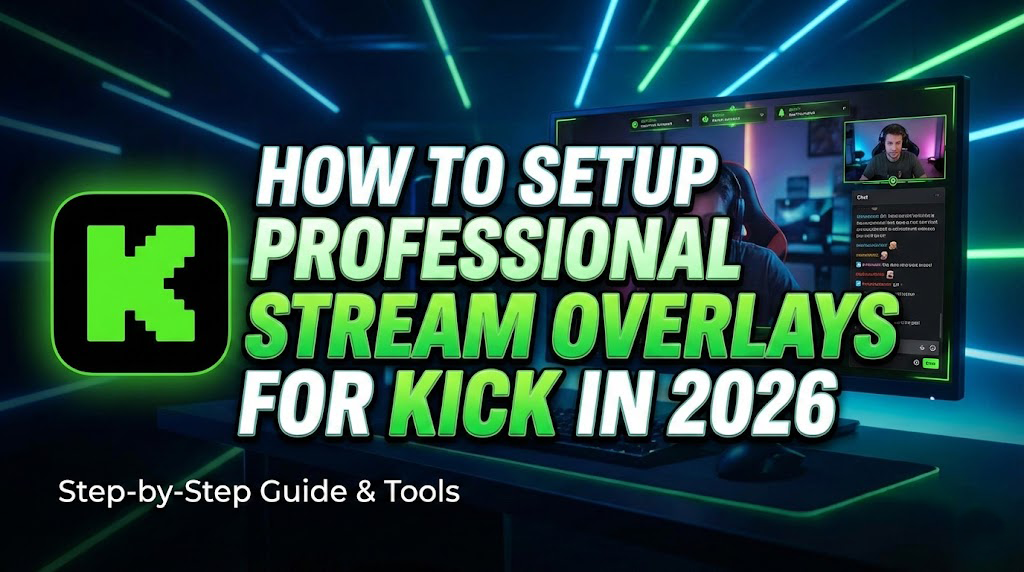
How to Setup Professional Stream Overlays for Kick in 2026
Kick has solidified its place as a major powerhouse in the streaming world. If you are making the move to the “green platform” or just starting your journey in 2026, the visual standards are higher than ever. Viewers expect crisp audio, minimal latency, and a visually stunning broadcast.
While Kick operates slightly differently than Twitch on the dashboard side, the good news is that setting up high-quality overlays in OBS is universally simple. At ProStreamGFX, we ensure our packages are 100% compatible with Kick, Twitch, and YouTube. Here is your definitive guide to branding your Kick channel.
Why Visuals Matter on Kick
- First Impressions: Kick’s “Featured” algorithm favors visually distinct thumbnails and streams.
- Retention: An animated overlay keeps the screen alive even when gameplay slows down.
- Identity: Stand out from the default generic setups with a brand that screams “Pro.”
✅ The 2026 Kick Starter Pack:
1. OBS Studio: Ensure you are on version 31.0 or higher for best Kick integration.
2. Stream Key: Located in your Kick Creator Dashboard under Settings > Stream Key.
3. ProStreamGFX Package: Downloaded and unzipped on your PC.
Step-by-Step Installation Guide
-
Connect OBS to Kick
Before adding graphics, ensure you are broadcasting to the right place.
- Open OBS Settings and go to the Stream tab.
- Set Service to “Kick” (or “Custom” if using a specific ingest server).
- Paste your Stream Key from the Kick Dashboard.
- Tip: In 2026, ensure your Output settings are set to NVIDIA NVENC (or AV1 if supported) for the clearest picture.
-
Importing Animated Overlays (WEBM)
Kick supports high-bitrate streams, so your animated overlays will look crisp. We use .WEBM files because they are transparent and lightweight.
- Create a Scene (e.g., “Just Chatting”).
- Click + in Sources > Media Source.
- Locate your Overlay File (e.g., “Chatting_Overlay.webm”).
- IMPORTANT: Check the box for “Loop” so the animation never stops.
- Repeat this for your “Starting Soon” and “BRB” screens.
-
Setting Up Kick Alerts (Browser Source)
Unlike Twitch, Kick alerts (Follows, Subs) usually require a third-party tool like BotRix or StreamElements.
- Log into your alert provider (e.g., BotRix) and link your Kick account.
- Customize your alert animation and sound.
- Copy the Widget URL provided by the tool.
- In OBS, add a Browser Source. Paste the URL and set the dimensions (usually 1920×1080).
- Test a “Follow” alert to ensure it pops up over your overlay.
-
Kick Profile Panels
The “About” section on Kick is vital for linking your socials and donation page.
- Navigate to your Kick Channel Profile > Edit Panels.
- Click the + symbol to add a new panel.
- Click “Add Image” and select the .PNG Panel files from your ProStreamGFX package.
- Link the image to your Twitter, Discord, or Merch store.
- Note: Kick panels often look best with a transparent background, which all our packs provide.
Ready to Dominate Kick?
Setting up your stream is just the first step. To truly grow in 2026, you need a visual identity that viewers remember. Our animated packages are designed to give you that competitive edge instantly.
Don’t settle for default. Stream like a pro.
Browse Kick-Ready Overlays